Nano Teleprompter
AFELL APPSProductivity
4.7385.00 Reviews
- Version
- 8.1.5
- Installs
- 50.00K
- Age Rating
- Everyone
Screenshots
Our Review of Nano Teleprompter
 Analysis by Appyee
When I need to speak clearly on camera without memorizing every line, I want a prompt that stays out of the way and lets me concentrate on delivery. That is the appeal of Nano Teleprompter: it is a paid productivity app from AFELL APPS, built around reading a prepared script while filming or presenting. Its central idea is useful, but the best results still depend on how you arrange the phone, prepare the text, and rehearse with the scrolling pace.
How the app fits a real recording workflow
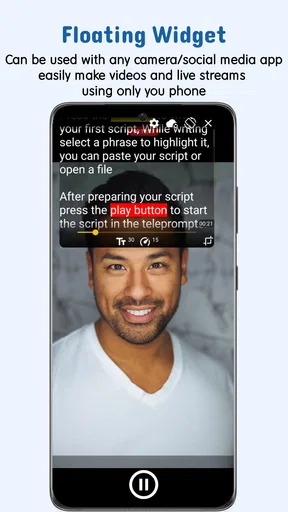
The current version is 8.1.5, and the app has been available since Jul 29, 2018. That history gives the product a more established feel than a brand-new tool, though a version number by itself does not tell me which changes arrived along the way. What matters in day-to-day use is the core workflow: prepare a script, set it up for comfortable reading, and use the floating prompt or a camera arrangement that suits the recording. The app’s summary points to syncing, floating use, and compatibility with any camera as its defining approach.
That flexibility is valuable because people do not all record the same way. If you use the phone’s own camera, you can keep the reading experience close to the recording process. If you prefer a different camera app, the floating prompt can help avoid being locked into one particular camera interface. The trade-off is that you have to test your setup rather than assume every phone position, camera app, and script length will feel equally natural.
My practical advice is to build a short test recording before relying on it for an important take. Put the phone where it will be during the real recording, open the camera you plan to use, and read a few lines at your intended pace. This quickly reveals whether the text is legible, whether your eyes move too far from the lens, and whether the scroll speed fits your speaking rhythm. A tiny test is more useful than adjusting everything by guesswork once you are already recording.
Getting Started with Nano Teleprompter
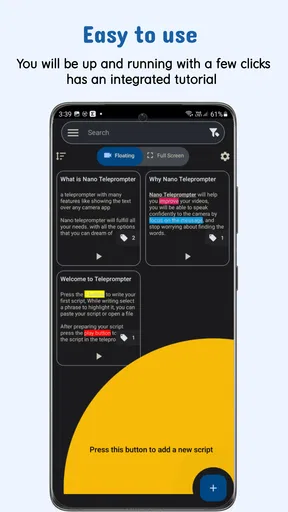
First things first, getting this app up and running is a breeze. Just head over to your app store, download, and you're good to go. Once you open it, you’ll find a clean and intuitive interface that doesn’t overwhelm you with a ton of options. Simplicity is key here, and I absolutely dig it.
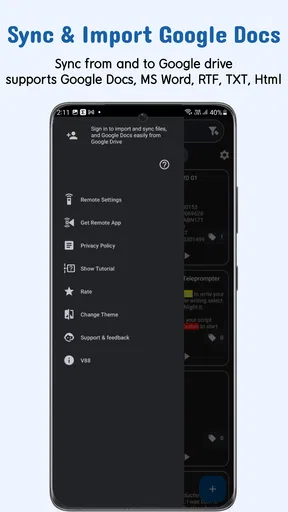
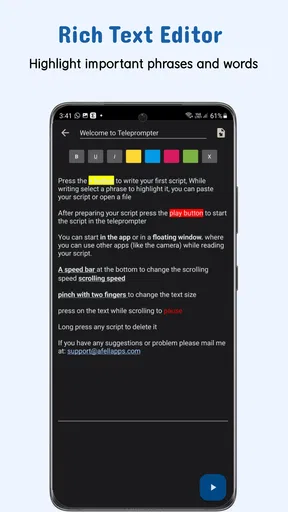
Adding your script is as easy as pie. You can type it directly, or if you’re like me and have everything on Google Drive, you can import it from there. The app supports multiple formats, so you're not stuck with just plain text. Pretty neat, right?
Features That Stand Out
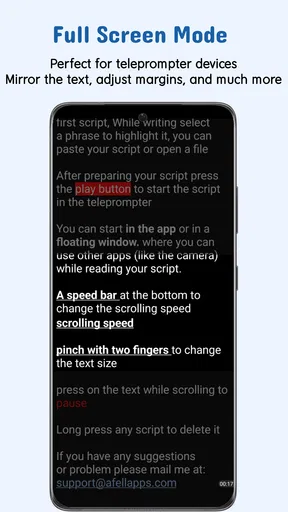
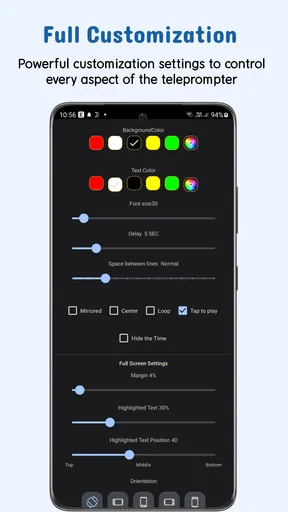
Now, let's talk about what makes this app stand out. The scrolling speed is adjustable, which is a lifesaver. You can set it to match your speaking pace. No more rushing through lines or awkward pauses. Plus, you can play around with text size and color to suit your preference. I mean, who doesn’t love a little customization?
One feature that I found super handy is the mirror mode. If you’re using a physical teleprompter setup, this is essential. It flips the text for you, so it appears correctly when reflected. It’s the little things that make a big difference!
Those controls are most useful when treated as part of rehearsal, not as last-minute decoration. I like to set the text large enough to read with a relaxed glance, then adjust the pace by reading aloud rather than silently. Silent reading is usually faster, so it can make a scroll setting seem comfortable until you begin speaking. If your delivery includes pauses, leave room for them in the script or plan to stop and restart between sections instead of forcing a continuous read.
Mirror mode serves a different purpose from ordinary on-screen reading. It is helpful when the text is being reflected through a physical teleprompter arrangement, but it is not automatically the right choice for a simple phone-on-tripod setup. Before recording, check the orientation with a few lines: mirrored text that is correct in one setup can be confusing in another. That small check prevents the awkward discovery that the display is flipped only after you have settled into your performance.
Using Nano Teleprompter in Real Life
So, how does it perform in the real world? I’ve tried using it for a couple of YouTube videos and a presentation, and honestly, it was smooth sailing. The text scrolls seamlessly, and I didn’t have to worry about misreading or losing my place. It feels like a natural extension of my workflow now.
One thing to keep in mind, though, is ensuring your phone is positioned correctly. You don't want to look like you're reading, so some practice might be needed to nail that natural glance. But once you get the hang of it, it’s golden.
A realistic use for the floating approach is a short weekly update recorded with a separate camera app. I would write the main points as spoken sentences, open the camera I already prefer, position the prompt near the lens, and record in short sections. That workflow keeps the camera choice flexible while making the notes visible. It also makes a small mistake easier to handle: pause, find the next paragraph, and continue, rather than starting the whole message again because one line went missing.
For a presentation, I would use the script differently. Instead of writing every word, I would prepare brief prompts for transitions, names, and details I cannot afford to forget. A full script can keep a speech accurate, but it can also encourage a flat, read-aloud delivery. Short cue lines let me glance down only when needed and return my attention to the audience. For an on-camera explainer, full sentences may make more sense, especially when precise wording matters.
Compared with a basic notes app placed beside the camera, a teleprompter is better when I need continuous, readable text without repeatedly scrolling by hand. Compared with memorizing, it reduces the burden of holding every line in my head, though it does not remove the need to rehearse. A dedicated physical teleprompter can be a better fit for long, polished shoots where eye contact and camera placement are critical; the phone-based approach is more convenient when I need a compact setup or want to work with a camera app I already use.
Who will benefit, and where it can frustrate
I would recommend this kind of tool to people who regularly make short videos, record lessons, deliver remote presentations, or need reliable wording for announcements. It is especially useful when the speaker knows the subject but wants help staying on track. The ability to work alongside different camera choices is also appealing if you have already settled on a recording workflow and do not want to change it just to read a script.
It is less suitable if you rarely read prepared material, prefer spontaneous conversation, or expect a prompt to make a presentation sound natural without practice. It can also be the wrong choice for a high-end shoot if your phone must sit far from the lens or if even a small eye movement is noticeable. In those cases, a properly arranged physical teleprompter or a second display positioned directly in front of the camera may be a better investment in the setup.
The app costs $4.49, so I would decide based on how often I expect to use a teleprompter rather than on the feature list alone. For regular recording, paying once for a focused tool can be more sensible than repeatedly fighting with improvised notes. If I only need a prompt for an occasional speech, a simple notes workflow may be enough. It is rated for Everyone, and it requires Android 7.0 or later, so compatibility is worth checking before planning a recording around it.
At a 4.7 average from around 2.8 thousand ratings, with over 50 thousand installs, it has found an audience among people looking for a compact prompting tool. Those figures are useful context, not a guarantee that every setup will suit you. AFELL APPS has kept the app in the productivity space, and I would judge it on the practical question that matters most: can I read comfortably while keeping my delivery conversational?
What I would check before depending on it
Before a time-sensitive recording, I would confirm that the script is complete, the text is easy to read at the phone’s actual distance, and the prompt is positioned close enough to the lens for natural eye contact. I would also test the camera-and-prompt combination I intend to use, because a setup that works while sitting at a desk may feel different when standing or recording in a tighter space. These are not complicated steps, but they prevent avoidable interruptions.
For longer scripts, I would divide the material into clear sections with short headings or natural pauses. That makes it easier to recover after a stumble and reduces the chance of losing my place in a dense block of text. I would keep sentences close to how I actually speak, too: a written paragraph can look elegant on screen but sound stiff when read aloud. A teleprompter works best as support for a well-prepared script, not as a substitute for one.
One question a new user may have is whether the app can work with a preferred camera rather than forcing a particular recording method. Its floating approach is intended to support camera flexibility, but I would still test the specific arrangement before an important session. Another practical question is whether the prompt can suit both a conventional phone recording and a reflected physical rig; mirror mode addresses the latter, while the correct display choice depends on the actual setup.
People also wonder whether they can use it without sounding like they are reading. In my view, the answer depends less on the app than on script design, eye-line, and rehearsal. Keep the display close to the lens, use language you would say naturally, and make a test clip to notice any obvious eye movement. If precise, word-for-word delivery is more important than conversational warmth, a complete script is sensible; if connection with an audience matters more, concise cues may work better.
Final Thoughts
So, is Nano Teleprompter worth checking out? Absolutely. Whether you’re a seasoned content creator or just someone who needs to deliver speeches without a hitch, this app has got you covered. It’s easy to use, packed with handy features, and genuinely helps make your delivery more professional and polished.
In a world where presentation is everything, having a reliable tool like this at your fingertips is invaluable. So go ahead, give it a whirl, and let me know what you think! Happy filming or speaking, or both!
My recommendation comes with one condition: give yourself time to learn the setup before using it for anything important. Its usefulness is clearest when you record often enough to benefit from a prepared script, flexible camera choices, and adjustable reading. If you want a compact way to stay on message, it is a practical option; if you mainly speak off the cuff or need a studio-grade eye-line for every shot, another approach may serve you better.
Verdict
Strengths of Nano Teleprompter
- Seamless integration with any camera app.
- Customizable text size and speed options.
- Supports multiple languages for scripts.
- Minimalistic and user-friendly interface.
- Works offline, no internet needed.
Limitations of Nano Teleprompter
- Limited free version features.
- Occasional lag on older devices.
- No cloud sync for scripts.
- Ads can be intrusive in free version.
- Limited font style options.
Similar Picks in This Category
View All
Google Calendar
Google LLC4.6

Google Drive
Google LLC4.3

Google Assistant
Google LLC3.9

Microsoft OneDrive
Microsoft Corporation4.6

Samsung Calendar
Samsung Electronics Co., Ltd.4.1

Microsoft OneNote: Save Notes
Microsoft Corporation4.6
Frequently Asked Questions
What is Nano Teleprompter used for?
Nano Teleprompter is designed to assist content creators, presenters, and speakers by displaying scripts on their smartphone screens. It overlays text on the camera feed, allowing users to maintain eye contact with the camera while reading. This is particularly useful for video blogs, presentations, and live streaming.
How does Nano Teleprompter work with my camera app?
Nano Teleprompter is highly versatile, functioning alongside your existing camera or video recording apps. It overlays the teleprompter text on top of any app you’re using, so you can seamlessly read your script while recording. This ensures you maintain a natural, professional appearance on camera.
Is Nano Teleprompter customizable?
Yes, Nano Teleprompter offers a range of customization options. You can adjust the text size, scroll speed, and position on the screen to suit your needs. This flexibility helps ensure readability and comfort while recording, making it adaptable to different lighting conditions and personal preferences.
Can I use Nano Teleprompter for live streaming?
Absolutely. Nano Teleprompter is an excellent tool for live streaming. By overlaying your script on the screen, it allows you to engage with your audience confidently without losing track of what you want to say. This feature is particularly beneficial for influencers and educators who live stream regularly.
Is Nano Teleprompter available for both Android and iOS?
Nano Teleprompter is available on both Android and iOS platforms. This ensures a wide range of users can benefit from its features, regardless of their device preference. You can download it from the Google Play Store or Apple App Store, depending on your device.
